Ensuring Clear Audio for Keynote Speakers at Your Event
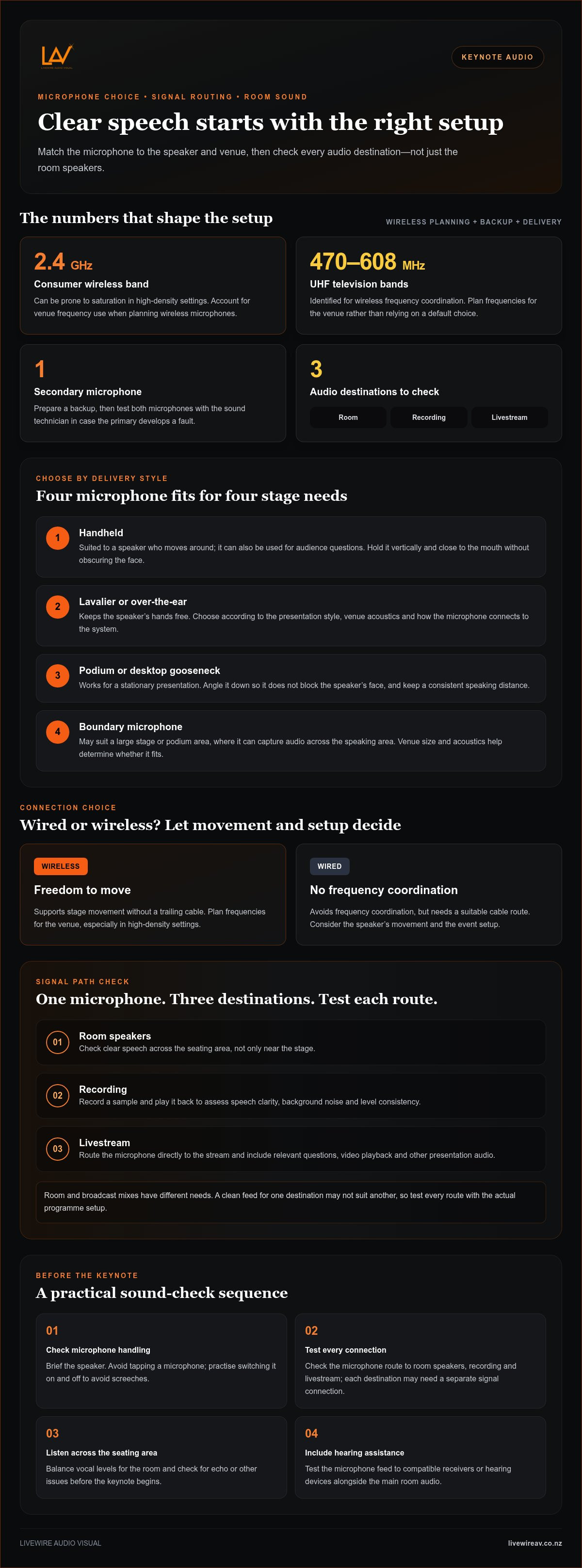
Ensuring clear audio for keynote speakers starts with matching the microphone to the venue, room acoustics and speaker’s presentation style, rather than defaulting to wired or wireless. A handheld microphone suits a speaker who moves around the stage and can also be used for audience questions. A lavalier or headset keeps the speaker’s hands free, while a podium or gooseneck microphone works for a stationary presentation. The sound system must deliver speech clearly across the seating area, with stage monitoring managed to avoid feedback.
Microphone choice may seem like a small detail, but it affects how comfortably a speaker can present and how easily the audience can follow. This guide explains how to choose a microphone and sound system, set speech levels across the room, and manage monitoring and feedback. It also covers practical sound-check steps to help keep the keynote clear from the first word to the last.
Table of Contents
Microphones- Wired or Wireless, Lavaliere Vs Handheld, Podium Vs Floor Stands?
For ensuring clear audio for keynote speakers, match the microphone to the venue, room acoustics and speaker’s presentation style. A fixed podium presentation, a mobile keynote and audience questions each place different demands on microphone position, handling and connection to the sound system.
Match the microphone to the speaker’s delivery. A handheld suits someone who moves around or takes audience questions, while a lavalier or over-the-ear microphone keeps their hands free.
Choose a podium or desktop gooseneck microphone for a stationary presentation. Adjust it downwards so it doesn’t block the speaker’s face, and position it within consistent speaking distance.
Consider a boundary microphone for a large stage or podium area. It can capture audio evenly across the speaking area; venue size and acoustics help determine whether it suits the event.
Decide between wired and wireless based on movement and setup. Wireless supports stage movement without a trailing cable; wired avoids frequency coordination and requires a suitable cable route.
Plan wireless frequencies for the venue. The 2.4 GHz consumer band can be prone to saturation in high-density settings. The 470 to 608 MHz UHF television bands are identified for wireless frequency coordination.
Confirm how each microphone connects to the sound system. Test its route to the room speakers, recording or livestream, as each destination may need a separate signal connection.
Prepare a primary microphone and backup. Provide one secondary microphone and test both with the sound technician, so there’s another option if the primary develops a fault.
Brief the speaker on microphone handling before the keynote. Hold a wireless handheld microphone vertically and close to the mouth, without obscuring the face. Don’t tap it to test, as tapping can damage its sensitivity and degrade sound quality. Practise switching it on and off to avoid screeches.
Hearing assistance systems can route the keynote microphone feed to compatible receivers or hearing devices, helping attendees follow speech more clearly. Include the system in the sound check and test its feed alongside the main room audio.
These choices are practical steps towards ensuring clear audio for keynote speakers, from microphone selection through to the audience’s listening experience.
When comparing options, consider lapel or lavalier, over-the-ear, desktop gooseneck, handheld and podium microphones for a keynote. Match the choice to whether the speaker will stay at a podium or table, move around, or need their hands free. Check how the microphone connects to the sound system, and account for whether event audio will also be recorded. These details help ensure the microphone suits the room and any recording needs.
Handheld microphones for audience Q&A are another option to consider when planning how questions will be heard. For a stationary podium or table microphone, angle it down so it does not block the speaker’s face. With a wireless microphone, hold it vertically so it covers only the chin and leaves the face visible.
Protecting a keynote speaker's message and event reputation
For a corporate keynote, clear sound protects the presentation’s meaning and the audience’s experience. Build audio checks around each destination: the room speakers, recording and digital stream. A clean feed for one destination may not suit another, so test every route with the actual programme setup.
Check the room mix separately from the broadcast mix. The in-room system needs to suit the venue, while a livestream mix must deliver direct speech without relying on the room’s loudspeakers.
Route the speaker’s microphone directly to the livestream. A direct feed gives remote viewers a clearer voice than audio captured from a camera microphone across the room.
Give the online audience a complete programme mix. Include relevant questions, video playback and other presentation audio, then confirm each source reaches the stream at a consistent level.
Test the audio and visual content together. Play presentation clips from their intended device and check that spoken sound matches the displayed content in the room and online.
Record a sample before the keynote begins. Play it back to assess speech clarity, background noise and level consistency; a live meter alone won’t reveal how the recording sounds.
Confirm which audio sources the recording needs. A keynote-only recording may need a different mix from a full event record that includes host introductions and audience questions.
Review the recording after the event. Note any dropouts, uneven levels or unclear audience contributions, then use those observations to improve the next event’s setup.
Keep the wireless frequency plan coordinated. High-density settings can saturate the 2.4 GHz consumer wireless band, so the production team should account for frequency use at the venue.
For a hybrid event, run a complete rehearsal with the speaker, presentation files and streaming platform. Ask a remote listener to check speech intelligibility, playback and question audio, while an in-room technician monitors the venue mix. This catches routing problems before the keynote reaches either audience.
Afterwards, provide a concise audio report covering the room, stream and recording. Note the tested signal paths, any faults and how they were resolved. These practical notes help organisers plan future events and maintain consistency across a corporate programme.
If the event needs both room sound and a remote feed, Hybrid & Livestream Events can bring those production requirements into one coordinated setup.
A coordinated production plan brings the room mix, livestream feed and recording decisions together before the event. Clear ownership of each route makes it easier to resolve problems early and maintain a consistent message for every audience. Include the speaker’s priorities in the checks so technical choices support the delivery rather than distract from it.
Reliable sound is more than a production concern: it helps audiences stay engaged with the keynote and shows care for the speaker’s contribution. A well-checked setup gives organisers a stronger basis for a confident, professional event experience.
Sound-check and gain-staging procedures
A venue-specific sound check is essential to ensuring clear audio for keynote speakers, because room acoustics and equipment affect how speech carries. Test the final microphone, sound system and presentation sources in the event room. Keep 10 to 12 dB of dynamic headroom for live vocal peaks, so a louder phrase doesn’t distort.
Set each input before raising the room level. Ask the presenter to speak naturally, then adjust the microphone input until their voice sounds clear. Watch the mixing console for clipping during louder phrases.
Allow for the difference between rehearsal and delivery. Presenters often speak 3 to 6 dB softer during an empty-room sound check than during the live keynote. Ask for a full-volume passage, not only a conversational test.
Test the entire signal path. Check the microphone through the console and each destination, including room speakers, recording and livestream. Testing every route before the keynote is part of ensuring clear audio for keynote speakers, as a clean console signal may still be distorted or missing downstream.
Check presentation sources and microphone position. Play video or audio from the planned device, then ask the speaker to walk their route wearing the lavalier or headset. Include turns towards the screen and a louder passage.
To choose and position speakers for clear speech, consider the room layout and audience coverage. Place speakers in front of open microphones, aimed towards the seating rather than the stage. During the walk-through, listen from the front, centre and rear, then adjust their direction if speech loses clarity.
There’s no fixed number of microphones or speakers for every keynote. Plan a microphone for the keynote, adding others if hosts or audience questions need to be heard. Determine speaker quantity and placement based on room shape, seating and acoustics.
Schedule a technical run-through before the keynote to check the audio setup. Productions involving AI translation or AR overlays need a 60-minute run-through to test the added signal paths. Check for echo and confirm the system distinguishes speech from music.
For a virtual keynote, test the software with the speaker before the event, then complete another test run on the event day. Have them deliver the opening message and a louder passage, and listen to the remote feed for clear, consistent sound. These checks support clear keynote audio from rehearsal through delivery.
Speech sound levels across the seating area
A keynote audience needs consistent speech coverage from the front row to the back, not just strong sound near the stage. A room intended for keynote speeches should target a Speech Transmission Index (STI) score above 0.60 for good comprehension. STI reflects how clearly speech can be understood, so check coverage and intelligibility rather than relying on volume alone.
As a practical starting point, maintain sound system output between 65 and 75 decibels throughout the seating area. Walk the room while someone speaks through the keynote microphone, checking the front, centre, sides and rear. If the front seats are comfortable but speech fades at the back, adjust speaker coverage instead of simply turning up the whole system.
Map the seating before positioning speakers. Note the stage, audience zones, balconies, pillars and areas behind screens, since each can affect where sound needs to reach.
Check the venue’s in-house system. Confirm whether it covers the full seating area clearly or whether a portable system is needed for the room layout.
Listen from several audience positions. Ask a colleague to speak at keynote pace while you check speech clarity from the front, middle and rear rows.
Assess any delay coverage. Time-aligned point-source delay clusters are recommended every thirty to forty feet to provide even sound pressure of 70 to 75 dBA across an audience.
Recheck after seating or stage changes. Moving chairs, screens or presentation equipment can alter sound paths, so repeat the listening check after the layout is final.
Room conditions matter as much as speaker placement. Ambient HVAC noise above 55 dBA can lower an STI score by nearly 0.18 points. Listen for ventilation noise during the sound check, especially during quiet passages, and assess whether it masks consonants or makes the speaker’s message harder to follow.
Coordinate sound with lighting and slides. During a sample session, check that the speaker remains audible when presentation video plays, then listen again when the room is quiet. Lighting or bright visuals shouldn’t distract from speech, and music playback shouldn’t overpower the spoken message.
For a broadcast, test the room mix and online feed separately. A level that works across the venue may not translate well for remote listeners, so monitor the stream while someone speaks on stage. Note any weak seats or unclear passages, then adjust speaker direction or levels and repeat the walk-through before attendees arrive.
Clear, even coverage lets attendees follow the keynote without straining to hear. A final walk through the room, listening from multiple seats and checking live presentation sources, gives the technical team a practical basis for adjustments before the session begins.
Stage monitoring and feedback control
Set stage monitoring so the keynote speaker can hear themselves without competing with the audience mix. Check both perspectives: the speaker needs a comfortable reference on stage, while attendees need intelligible speech from the room system. A monitor that’s too loud or aimed towards an open microphone can cause feedback and interrupt the presentation.
Ask the speaker how they’ll monitor their voice. Confirm whether they need a stage speaker or another monitoring option, then test it from their actual position and speaking direction.
Place stage monitors carefully. Keep monitor speakers in front of open microphones and aim them towards the speaker’s listening position, reducing sound that travels back into the microphone.
Set monitor level only as high as needed. Have the speaker deliver a normal passage, then raise the monitor gradually until they can hear themselves comfortably without masking the room sound.
Test every stage position. Walk the speaker through their planned route and check each microphone position; feedback risk can change as the speaker moves nearer to a monitor.
Keep the audience and stage mixes distinct. Adjust the stage monitor for the presenter’s needs without raising the room system unnecessarily, which can make the audience mix harder to control.
Use microphone position to improve gain before feedback. Moving a microphone capsule from chest position to a mouth-adjacent headset position can increase gain-before-feedback by 12 dB to 18 dB.
Test wireless microphone changes before doors open. Practise switching the microphone on and off, and listen for screeches or sudden level changes before the conference begins.
Keep a technician at the mix position during the keynote. They can respond to feedback, adjust levels and distinguish a stage-monitor issue from a problem in the audience mix.
If a ringing tone starts, first lower the affected monitor or microphone channel. Identify which microphone and speaker combination is causing the feedback loop, then adjust its level or position. Avoid turning up the whole system to compensate, as this can make feedback worse across the stages.
For a virtual or hybrid event, test the presenter’s monitor and remote audio feed separately. If a speaker hears the online return through stage speakers, it may create an echo or feedback loop. Use a controlled monitoring route and confirm it during rehearsal.
Build these checks into the production plan for a corporate event. Plan stage monitoring for your event with a coordinated technical production setup.
LivewireAV: Full Technical Production
LivewireAV provides Full Technical Production for events where keynote audio needs to work alongside the venue layout, presentation and programme. Its Audio Line Array Systems support event sound, while Hybrid & Livestream Events connect in-room production with an online audience. LED Walls & Projection can bring presentation visuals into the same event setup.
Consider this support when your event needs coordinated audio and visual production, particularly for a keynote with stage movement, audience questions or a virtual component. Sharing the room layout, programme and presentation requirements helps shape a setup around how the event will run.
Contact LivewireAV to discuss the technical production for your event.
Set the keynote up for a confident start
Plan audio from the outset, alongside the run sheet, stage layout and presentation format. This gives your technical team time to understand how the keynote fits within the wider programme, including audience participation or remote access. A clear plan also helps the speaker know what to expect on stage.
For events that need coordinated sound and visuals, LivewireAV offers Full Technical Production, Hybrid & Livestream Events, and LED Walls & Projection. Bringing these elements together can help align the room experience with online delivery, while allowing the keynote speaker to focus on their message. Careful planning is the practical starting point for ensuring clear audio for keynote speakers.
Contact LivewireAV about event audio to discuss the needs of your upcoming event. With the technical details planned ahead, your team can give the speaker a clear stage and the audience a more focused experience.
Comments