How to Avoid Presentation Technical Difficulties and Keep Calm
Preparation, not quick thinking, is the most reliable way to avoid presentation technical difficulties. Test the equipment and venue setup, save a backup copy of your slides in more than one place, and rehearse how you’ll continue if something fails. A clear plan gives you practical options if a microphone drops out, a screen freezes or slides won’t load.
Technical glitches can unsettle even a well-prepared presenter, but they don’t have to derail the presentation. This guide explains how to check equipment and files, prepare useful backups, respond calmly when something goes wrong and keep the audience engaged while the issue is resolved. It also covers common presentation mistakes, so technology supports your message rather than competing with it.
Table of Contents
1. Evaluating problems and updating preparation checklists
Start by listing the failures that could interrupt your presentation. A frozen slide deck, failed microphone or unstable internet connection each needs a clear response. To avoid presentation technical difficulties, match every likely problem with an action, a person responsible and a backup. This turns a general checklist into a practical plan for your venue, equipment and presentation format.
To reduce Wi-Fi and internet problems, test the connection in the room, using the device you’ll present from. Keep an offline copy of your slides and prepare a phone dial-in option for online presentations. If your presentation depends on streaming content, save a local copy. That way, a weak connection won’t leave you without material.
Prepare backups in more than one place. Save the presentation on your laptop, another device and cloud storage, and copy it to a USB drive. Email yourself a copy as another retrieval option. Open each file on the device you’ll use. If the main device fails, switch to the alternative rather than spending time on repeated troubleshooting. Printed slides or key points can keep an in-person talk moving if screens stop working.
Rehearse the full presentation at least three times. Practise explaining key points without relying heavily on slides or notes, so you can continue if the deck becomes unavailable. Simulate a microphone failure or frozen slides, then time how long it takes to use your backup plan. This reveals problems before the audience arrives and helps you decide when to continue without the affected technology.
For a webinar, bring the team together 30 minutes before it begins to discuss changes and troubleshoot potential issues. Assign clear roles: the Presenter manages the deck and delivery, while a Moderator knows the content and can take over if contact is lost. A Technical Moderator can manage platform issues and attendee questions. Agree on how the team will communicate during the session.
After each presentation, review what went well and what went wrong with your team and technical support. Record the issue, its effect, the action taken and how long it took to resolve. For example, if a video failed to play, note whether a local copy or spoken explanation kept the session on track. Reviewing each event helps you avoid presentation technical difficulties in the next setup.
Update the checklist after the review. Add newly discovered problems, remove steps that no longer fit and name the person responsible for each response. After each webinar, hold a short debrief and agree on next steps. A current checklist, tested backups and practised handovers help protect the audience’s attention when technology misbehaves.
Fit the setup to the presentation and add newly identified risks. Prepare an alternative device, slides on a USB drive or a phone dial-in option. If an issue can’t be resolved quickly, switch plans or continue without the affected technology. Group presenters should assign roles and decide who takes over if someone drops out or has a problem. A webinar moderator should know the content and be ready to take over if contact with the presenter is lost. Practise without relying heavily on slides or notes.
2. Keeping the presentation moving during technical problems
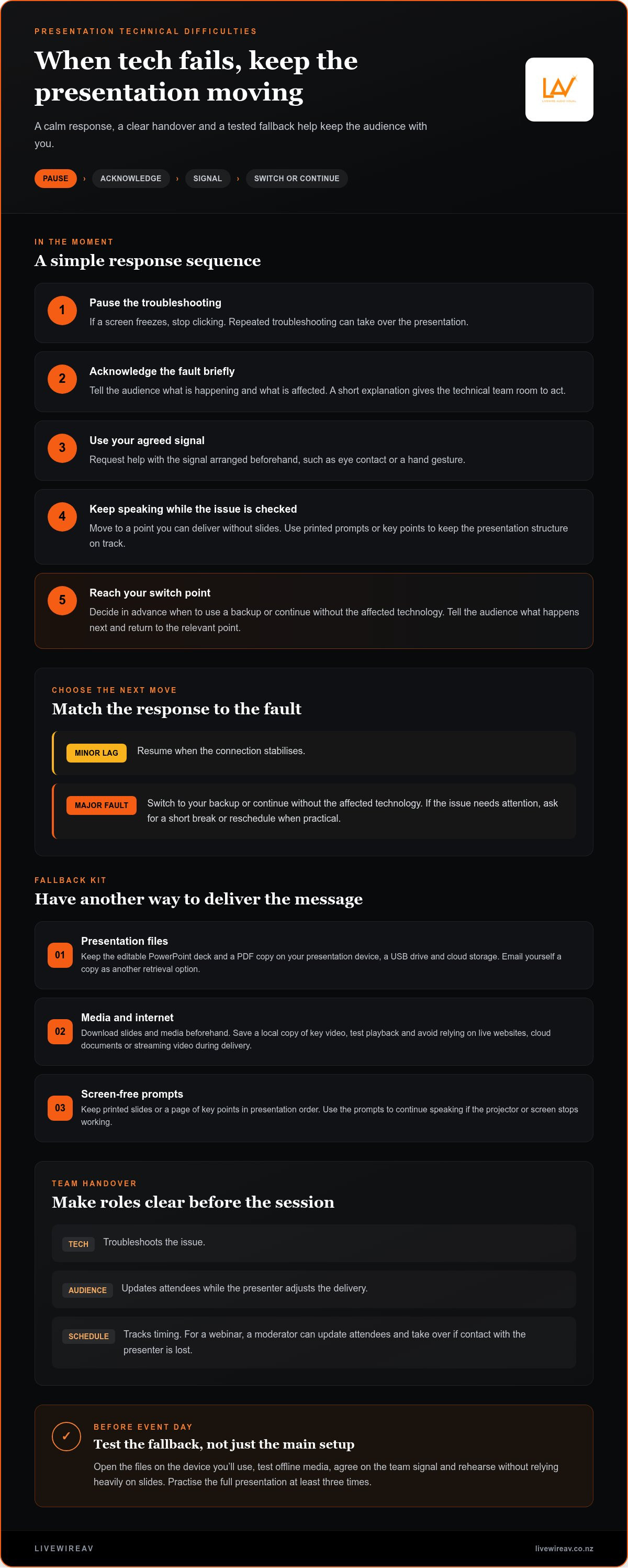
If a screen freezes, stop clicking and tell the audience what’s happening. A brief explanation gives the technical team room to act. Use your agreed signal, such as eye contact or a hand gesture, to request help. While they check the connection, move to a point you can deliver without slides. Don’t let repeated troubleshooting take over the presentation. Set a clear point for switching to your backup or continuing without the affected technology.
For presentation files, keep the editable deck and export a PDF copy. PowerPoint preserves editable slides, while a PDF provides a straightforward alternative for viewing and presenting. Save both on your presentation device, a USB drive and cloud storage. Email yourself a copy as another retrieval option. Open the files on the device you’ll use, since a saved copy is only useful if it loads correctly.
To present without internet access, download the slide deck and any media files to your device beforehand. Avoid relying on live websites, cloud documents or streaming video during delivery. If a video supports a key point, save an offline copy and test its playback. Keep a written summary of important links or statistics, so you can explain the point if online access drops.
Printed slides or a page of key points provide another fallback if screens fail. Keep the printout in your notes, arranged in presentation order, so you can find the next section quickly. If the projector stops working, use the printed prompts to continue speaking rather than waiting in silence. A concise handout can also help you maintain the structure without reading every slide aloud.
Teamwork helps contain a disruption. Agree on who troubleshoots, who updates the audience and who tracks the schedule. For a webinar, use a team messaging app to share the issue and presentation status. A moderator can update attendees while the presenter adjusts the delivery. If a team member loses contact, a prepared handover means someone else can take action and continue the session.
Keep your response simple: pause, acknowledge the fault and choose the next step. For a minor lag, resume when the connection stabilises. If a major fault needs attention, ask for a short break or reschedule when practical. Tell the audience what’s affected, what you’re doing and whether you’ll continue with an alternative. Thank them for their patience, then return to the relevant point.
Afterwards, note which backup you used and whether it worked. If the USB copy opened but the embedded video failed, update the offline media plan. For an event with several technical elements, LivewireAV’s Full Technical Production is a relevant option to support the presentation’s technical setup.
3. Staying calm and engaging the audience during glitches
If a slide freezes, pause, acknowledge the fault and keep your attention on the audience. Explain what’s affected and what you’re doing, then thank people for their patience. If the issue is minor, resume as soon as possible. If the slides won’t load, speak directly to the room and use a related question or anecdote to keep the thread. A calm response gives people a clear cue to stay with you.
Plan audience involvement throughout the presentation, not only during a technical pause. Introduce an audience question or short discussion at least once every 3 minutes, so a conference session doesn’t rely on slides alone. Shape the talk around 3-5 main messages, then use examples that matter to the people in the room. A practical scenario for staff, for instance, may land better than a generic explanation.
Check multimedia from the audience’s perspective. Before presenting, play each video and audio clip through the actual screen and sound system, and confirm that text is readable from the back of the room. During a glitch, check whether people can see or hear the content before continuing. Clear speech matters too: an Audio Line Array System can support sound coverage at an event, helping spoken content reach the audience across the room.
To embed fonts, videos and audio, use your presentation software’s insert or embed options, then save the deck with those media files included where supported. Reopen the saved file on the presentation device and test playback, fonts and audio output. A file that works on your laptop may behave differently on another system.
Leave a few minutes at the end for questions. Listen carefully, acknowledge the question and pause to organise your response. If you don’t know the answer, say so plainly and offer to follow up with details. For a challenging question, repeat or briefly paraphrase it to make sure you’ve understood before responding. If a technical interruption cuts into your time, prioritise the most important points and leave less essential material aside.
Tailoring the content also helps you recover smoothly. Identify what the audience needs to understand or decide, then choose examples and language to suit their experience. A technical update for specialists can use precise terminology, while a mixed audience may need a brief explanation of each term. Prepare a shorter version of the talk too. If timing changes or a glitch delays the start, you can adjust the presentation without rushing through every slide.
A technical fault need not interrupt the thread of a talk. If a deck freezes or slides fail to load, acknowledge the problem calmly and keep speaking directly to the room. A related question or anecdote gives people something useful to respond to while the issue is handled. A brief apology, followed by attention to the audience, helps preserve the connection. A composed presenter can help listeners stay calm when an unexpected problem arises.
Engagement is a concern beyond technical interruptions: in a Kahoot! workplace report survey, 53% of business presenters said keeping their audience engaged was their biggest challenge. Questions from the room deserve the same steady approach. If an answer is not known, be honest about that and offer to follow up with a detailed response.
4. Testing equipment and becoming familiar with venue technology
Arrive early enough to complete a full test before the audience enters. The time required depends on the setup, venue access and number of devices, so plan around the checks your presentation needs. Test the laptop connection, microphone, speakers, display, internet access and any video or animation. A successful slide test alone won’t reveal a quiet microphone or media that fails to play.
For a New Zealand venue checklist, confirm the room’s screen or projector connection, available audio, internet access, power points and any required adapters. Check the seating, lighting and acoustics, then brief venue technical staff on your presentation needs and potential pitfalls. If possible, visit the room beforehand to understand the sightlines and where you’ll stand.
Test your microphone in the space where you’ll speak. Say a few sentences at your usual volume, listen for distortion or dropouts, and check that people at the back can hear. If a backup microphone is available, test that too. Walk around the room while speaking if practical, since sound can change between the front and rear. Ask a colleague to listen from different seats rather than relying only on what you hear beside the speakers.
Connect your presentation device to the actual display and sound system, then advance through every slide. Check embedded videos, animations, slide transitions and audio. Confirm the laptop battery is charged and the presentation software works on that device. If you’ve included video, check its volume as well as the image; a clip left muted or very low after rehearsal may need its level raised to 100%.
Check the internet connection in the presentation room, especially if your slides or media rely on online access. Test the platform and sign-in process for a webinar, and confirm that audio and video work on the device you’ll use. Close unrelated applications before testing. This reduces interruptions and lets you focus on the key points instead of troubleshooting pop-ups or missing files.
Match your slides to the venue display. A widescreen 16:9 layout generally fits modern projectors and large-screen TVs better; 4:3 slides on a 16:9 screen can appear smaller, making text harder to read. Check a few slides from the audience’s viewing distance, including the smallest text. If the image is cropped or unclear, adjust the layout before presenting.
Bring the adapters your device needs, including HDMI or VGA where relevant, and test each connection before the session. Knowing how to switch inputs, adjust volume and mute the microphone helps you respond without guesswork. Write down the correct input and who to signal for technical help. These details make your final equipment check specific to the room, not just the laptop.
5. Avoiding common presentation mistakes
A common presentation mistake is letting slides carry the message instead of supporting it. Decide what the audience should remember, then build each slide around that point. A presentation is easier to follow when it has 3-5 clear messages, rather than a long sequence of unrelated details. Use a short example to explain each message, and remove material that doesn’t help the audience understand or act.
Keep text readable and restrained. One guideline suggests no more than about 5 bullet points per slide, with no more than about 5 words per bullet. The 5-5-5 rule also advises against placing more than five text-heavy slides in a row. Another approach recommends no more than 6 lines, with 6 words per line. These are different guidelines, not rules to combine mechanically. Choose a consistent approach, then check the finished slides from the back of the room.
Screen clutter can distract from your point or reveal material you didn’t intend to show. Before sharing your screen, close unnecessary tabs and windows, silence notifications and quit messaging apps. Open the presentation in advance, then check which screen or application the audience will see. This simple sequence helps prevent a calendar alert, private message or unrelated browser tab from interrupting your delivery.
Use video and animation only when they clarify or highlight your message. A clip that adds atmosphere but no useful information creates extra playback risk and uses speaking time. If a video explains a process better than a still image, introduce its purpose before playing it. That way, if playback fails, you can describe the key point without leaving the audience unsure why the clip mattered.
Structure the talk for attention, not just completeness. Break the content into 3-5 story chapters, and plan audience involvement at least once every 3 minutes. A workplace report survey from Kahoot! found that 27% of business presenters cited storytelling as a sought-after speaker trait. A relevant customer scenario or project example can make an abstract message easier to follow than another dense slide.
Time your delivery and leave room for questions. Most business presentations should aim for 10 to 20 minutes unless a specific time is set. Rehearse to the allotted time, then identify which points are essential if the session runs short. Keep a few minutes for questions, and avoid adding slides simply because there’s space. A focused talk is easier to deliver and easier for the audience to recall.
Before presenting, review each slide for one clear purpose: explain, illustrate or prompt discussion. Remove anything that distracts from that purpose. If you’re planning a conference or corporate event and need coordinated technical production, plan your event’s technical production with support matched to the presentation.
LivewireAV: Full Technical Production
LivewireAV provides Full Technical Production for events where audio, video and lighting need to work together. Coordinating several technical elements as one production can help keep the focus on your message. LivewireAV also provides Hybrid & Livestream Events, LED Walls & Projection, and Audio Line Array Systems. These services suit conferences, corporate gatherings and other events where clear sound and visuals matter to the audience.
Consider Full Technical Production when your event requires more than a basic slide setup, or when you need technical support across multiple parts of the presentation. Share the event format and presentation requirements so the production can be planned around them. For a practical next step, contact LivewireAV about your event’s technical production.
Make your next presentation easier to deliver
Use your next event as an opportunity to make technical planning part of the presentation design, not just a final check before people arrive. Decide what the audience needs to see and hear, then shape the production around that experience. That’s a practical approach to avoiding presentation technical difficulties: make every technical choice serve the message and the people receiving it.
For a conference, corporate gathering or event with remote participants, LivewireAV provides Full Technical Production, Hybrid & Livestream Events, and LED Walls & Projection. These services can bring technical elements together when a presentation calls for more than a laptop and screen. The right setup depends on your event format and what you want the audience to experience.
Start planning with a clear outline of your event and presentation requirements. Contact LivewireAV for presentation support and discuss the technical production that fits your event. With a considered plan in place, you can focus on delivering your message with composure.

Comments