Seamless Switchers for Events and How Live Video Changes Work
A live production needs to switch between camera, presentation and playback feeds without interrupting what viewers see. A seamless switcher for events routes those video sources to the programme output in real time, helping the production team move between them cleanly. The result is a composed viewing experience for audiences in the room and online.
It’s easy to focus on the cameras, screens and stream, but switching connects those elements as the event unfolds. The right setup helps operators follow speakers, bring in presentation slides or pre-recorded clips, and keep the programme moving without abrupt changes.
This article explains how live switching works, where it supports streaming and hybrid events, and why input types and timing matter. You’ll also see how features such as multiview monitoring help operators make informed switching decisions across news, sport and event productions.
Table of Contents
Real-time switching between video sources
A live video switcher takes feeds from cameras, computers and playback devices, then selects which source reaches the programme output. At a conference, it can switch from a presenter to their slides while the live programme continues.
Switcher Types and Differences
A seamless switcher describes clean live transitions, while a video mixer selects and combines sources for a programme. A presentation switcher focuses on changing display inputs, such as switching between a laptop presentation and a room camera. The distinction matters because the production determines which controls and outputs are useful.
In practice, equipment and software labels can overlap. To understand what a seamless switcher for events does, focus on its role: moving between sources without an unwanted blank screen or disruptive cut. For example, an operator might show a wide camera shot, then switch to a close-up as a speaker begins.
Features for Seamless Live Transitions
A suitable switcher provides clear source selection, preview monitoring and a programme output. A multiviewer displays several incoming feeds together, helping the operator choose the right camera before taking it live. This is especially useful when a panel discussion moves quickly between speakers.
Timing tools can also support clean transitions. Genlock and timecode help align video and audio sources, while frame synchronisers align incoming signals with different timing. These features are useful when a production combines feeds that don’t arrive in step.
In a practical workflow, the operator previews the next source, checks its picture and audio, then takes it to programme. A laptop showing slides, for instance, can be checked before replacing the camera view. Matching sources and monitoring their timing helps avoid black frames, mismatched audio or unexpected cuts.
Not every event needs broadcast-level synchronisation. A simple room setup with one camera and one presentation computer may need only straightforward source selection. A production with several cameras and feeds arriving at different times benefits more from multiview monitoring and frame synchronisation. The source count, feed timing and programme pace shape the requirements.
Video switching for live streaming
For a livestream, the switcher controls which camera, presentation or playback feed viewers receive. It can also shape the programme with layouts and graphics before the signal reaches a platform such as YouTube, Facebook or Zoom.
Setting Up and Operating a Switcher
Setup involves connecting each source, assigning its input and configuring the switcher’s programme output for the stream. This matters because online viewers see the selected output, not every feed available in the venue.
Start by matching the cameras and computers to the switcher inputs, then connect its output to the streaming system. Preview each source before taking it live. For a corporate presentation, the operator might show the speaker, switch to their slides, then use picture-in-picture to keep both visible. Add pre-recorded clips and branded graphics, such as a logo or lower-third, where they support the programme. Confirm that the streaming platform fits the output workflow.
Live Switching Problems and Risks
Live switching problems can include an incompatible feed, a mistimed transition or a blank source. Managing these risks matters because viewers may miss key content if the programme output fails or changes unexpectedly.
For example, a laptop set to an unsupported output format may not display correctly through the switcher. Audio can also fall out of step with the picture if sources have different timing. Test the actual camera, presentation and playback feeds through the complete signal path, rather than relying on a source preview alone.
During the event, keep a suitable camera view ready while changing layouts or bringing in clips. Redundant switchers and power supplies can help a broadcast continue if a system fails. Picture-in-picture can also preserve useful context, such as showing a presenter alongside their slides, rather than leaving viewers with an empty frame.
For a hybrid programme, planned layouts and tested source changes make live operation clearer. Hybrid and livestream event production can bring switching, camera feeds and streaming into one coordinated plan.
Applications in news, sport and live events
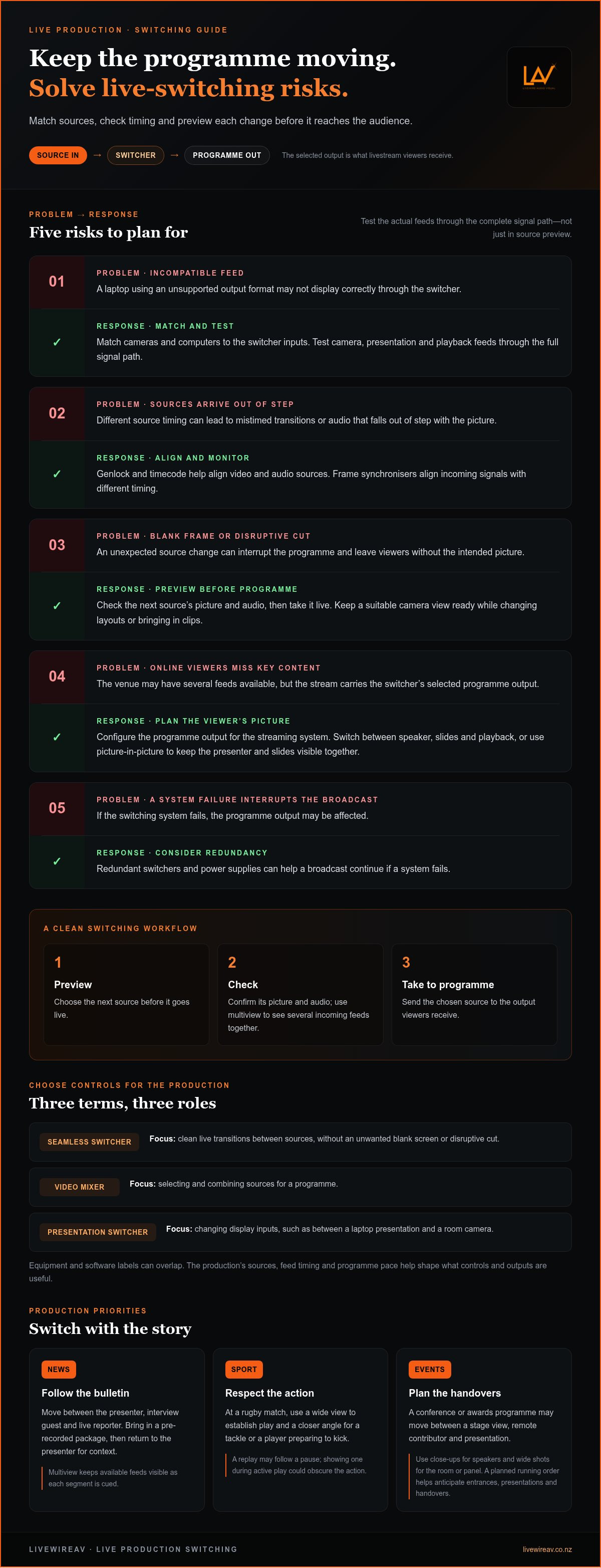
Switching choices should follow the story being told. A news bulletin, rugby match and conference each need different camera priorities, timing and editorial judgement. The operator manages audience attention as well as video, choosing the view that helps people understand what is happening.
In a news production, a presenter, interview guest and live reporter may each have a separate camera feed. The operator can switch between the studio desk and a reporter on location as the bulletin changes. A pre-recorded package can go into the programme, followed by the presenter returning on air to provide context. A multiview display helps the operator keep available feeds visible while the producer cues each segment.
Sport calls for decisions that follow fast action. At a rugby match, a wide camera can establish the play, while a closer angle shows a tackle or a player preparing to kick. The director may choose a replay after play pauses, then return to the live field view. Timing matters: showing a replay during active play could obscure the action, so the production team coordinates camera choices with the match’s flow.
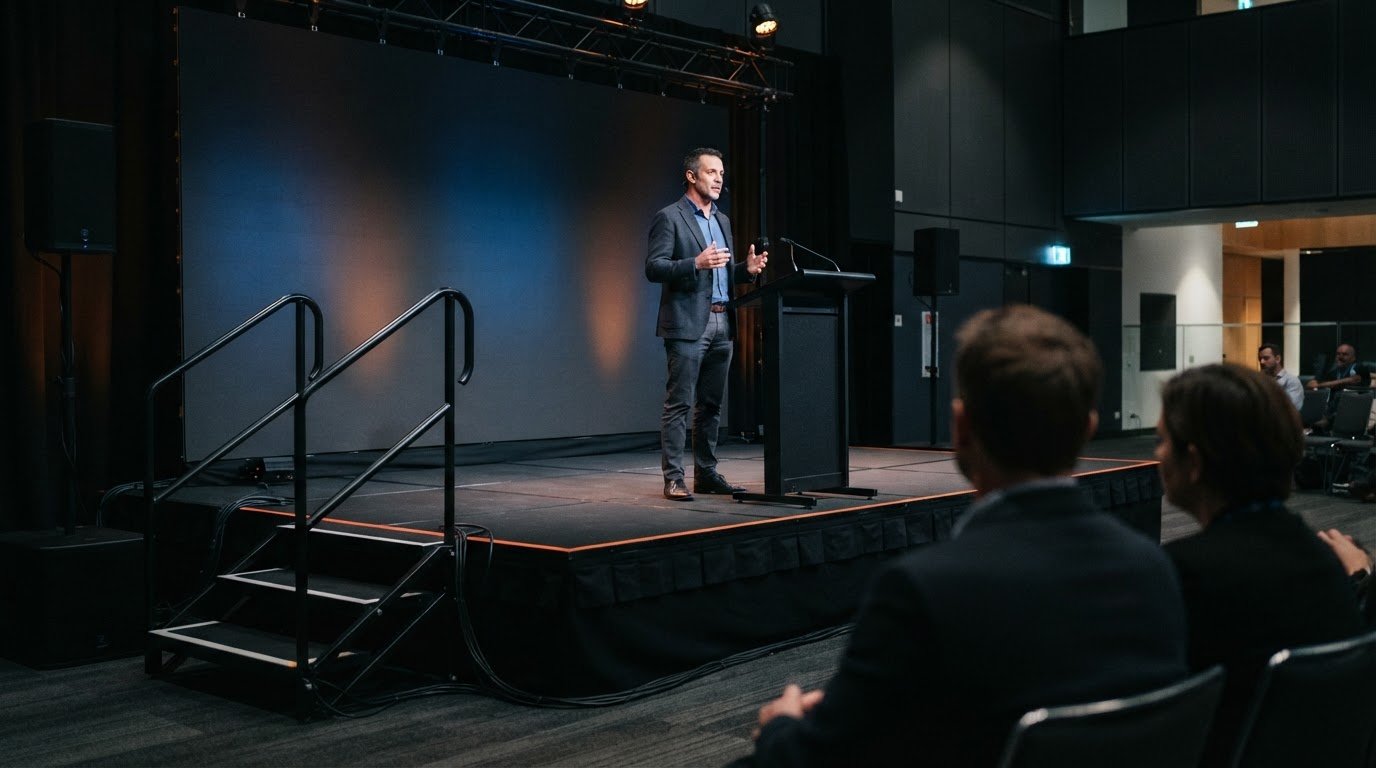
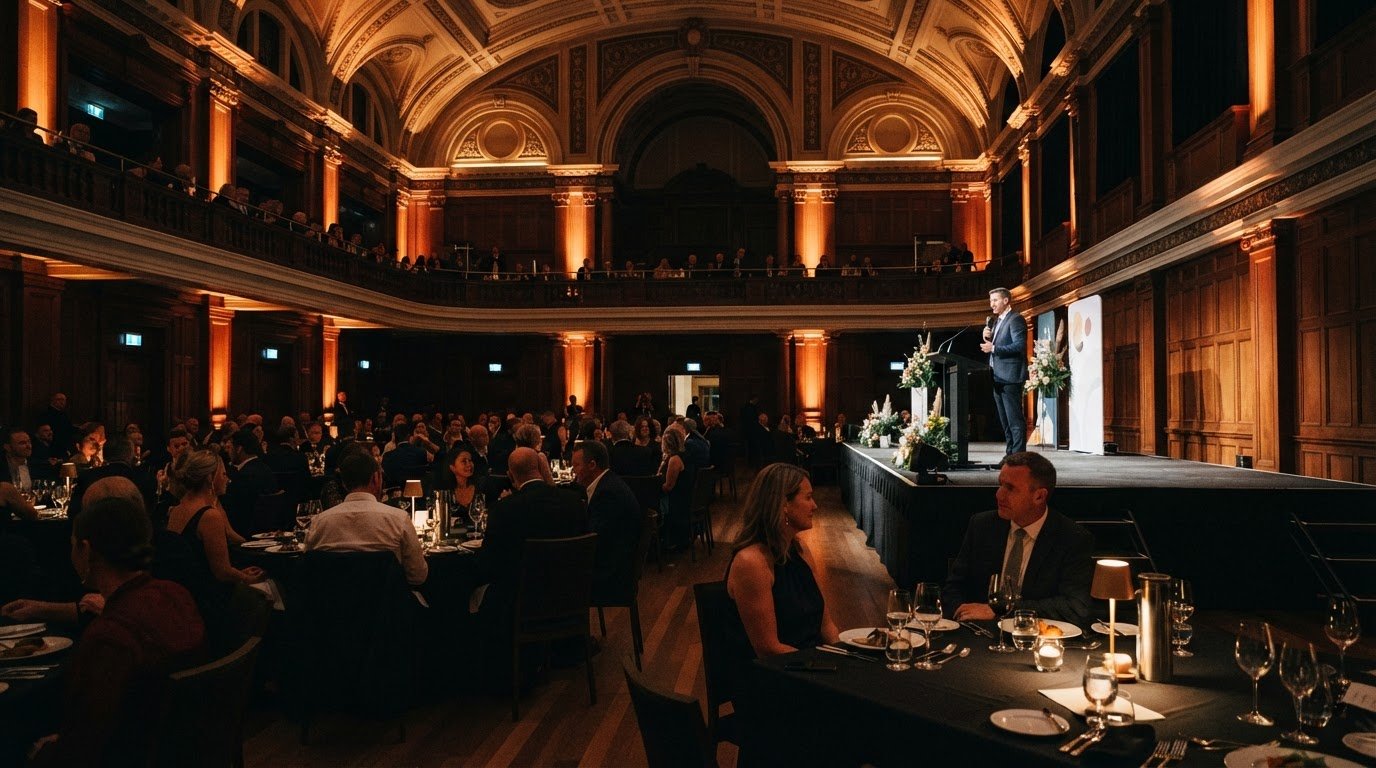
At a conference or awards event, the programme may move between a stage view, a remote contributor and a presentation. A close-up can make a speaker easier to follow, while a wide shot shows the room or panel. For a hybrid audience, picture choices also affect how clearly online viewers can follow the event. A planned running order helps operators anticipate entrances, presentations and handovers.
Managing a production starts with identifying the moments that need distinct coverage. Before the event, the team can map each segment to a camera or playback source and agree on cues with the director or stage manager. During the live programme, the operator follows those cues while adapting to changes, such as a delayed reporter or an extended awards acceptance. This coordination keeps the pictures relevant without treating every event like a broadcast studio.
Input types and compatibility
For an event in New Zealand, choose a switcher based on the sources, displays and streaming destination in the production plan. Check the input count and types together: the switcher needs enough suitable connections for the cameras, presentation computers and playback feeds used on the day.
Some switchers support SDI or NDI, which can offer flexibility in corporate audiovisual environments. SDI carries video over a physical connection, while NDI supports network-based video workflows. The key is to match each source’s output to an input the switcher can receive. A mismatch can stop a camera or computer feed from appearing as expected.
List every planned source before selecting equipment. For example, a conference might use a stage camera, a presentation computer and a playback source. Compare the list with the switcher’s available inputs, then consider whether the programme may need additional sources. Input count matters because the operator can only select feeds connected to the system.
Compatibility also depends on the signal path beyond the switcher. Identify where the programme output needs to go, such as an in-room display or streaming system, and make sure the full chain supports the required connection. For a hybrid event, the online stream and venue screens may need different outputs or layouts. Planning these destinations early helps each feed reach the right audience smoothly.
Before the event, connect and test the actual camera, computer and playback sources. Confirm that each appears correctly, then rehearse the transitions in the running order. A laptop used for slides, for instance, should be tested with the switcher and display path, not just on its own. This exposes connection or format problems while there is time to adjust the setup.
For an event in New Zealand, consider the source count, whether the workflow uses SDI or NDI, the required outputs and the streaming platform. These factors determine how the switcher fits the production and whether feeds can move through it cleanly.
LivewireAV: Full Technical Production
LivewireAV provides Full Technical Production for events where video switching is part of a wider setup. This brings camera feeds, screens, sound and lighting into a coordinated production plan, with technical decisions shaped around the programme and venue.
For events with audiences in the venue and online, Hybrid & Livestream Events support delivery for both. LED Walls & Projection can present event visuals in the venue, while Audio Line Array Systems support sound across the space. These services are relevant when a production involves more than selecting camera feeds and needs connected technical elements.
Consider this support when planning a conference, sporting event or corporate gathering with multiple video sources or a livestream. Contact LivewireAV to discuss the technical production for your event.
Plan the next production with confidence
Start by defining the experience you want audiences to have, then shape the technical plan around it. Understanding what a seamless switcher for events can support helps you brief the production team clearly, especially when the programme serves people in the venue and viewers online.
LivewireAV can bring Full Technical Production together with Hybrid & Livestream Events, with LED Walls & Projection as part of the wider event setup. This is a practical option when video switching needs to work alongside other technical elements, rather than as a standalone decision.
Share your event requirements and intended audience with the team to start a focused conversation about the production. Contact LivewireAV about event switching and take the next planning step with a clear brief.
Frequently Asked Questions
Seamless Switching in Live Broadcast; Why It Matters?
Seamless switching helps keep a live programme clear and continuous as its focus changes. In a news bulletin, for example, a clean transition from the presenter to a remote report helps viewers follow the story. If a change produces a blank frame or mismatched sound, attention shifts from the content to the technical fault. Consistent transitions support a composed broadcast.
What is a seamless switcher for events?
A seamless switcher for events selects between live video feeds while keeping the programme moving. An operator might show a camera view of a keynote speaker, then bring up a prepared title or event clip. The switcher may be hardware, software or a combination. Its role is to let the production team control which visual content reaches the audience.
How does a seamless video switcher work at a live event?
A seamless video switcher receives connected feeds and routes the selected picture to the event’s programme output. The operator can preview a source before taking it live, which is useful if a speaker changes slides unexpectedly. A multiview display shows available feeds together, helping the operator choose a suitable view while managing the running order and cues.
What types of inputs and outputs do event video switchers support?
Inputs can include camera feeds, computers, playback devices and network video such as NDI; some switchers also support SDI. Outputs depend on the production path, such as sending the programme to a venue display or streaming workflow. For a panel event, map each camera and presentation computer to an input, then identify where the finished programme needs to go.
How many video sources can event switchers handle, and what resolutions do they support?
The number of sources and supported resolutions depends on the switcher’s design and the production setup. Count the planned feeds, including cameras, presentation computers and playback, then match them to available inputs. Check that each source and destination supports the switcher’s video formats. A laptop presentation and camera feed, for example, both need compatible connections and signal formats.
Comments